
Model Trades
Model or “what if” trades can be used to add or modify positions to see how trades would impact the risk of your portfolio.
Adding Model Trades
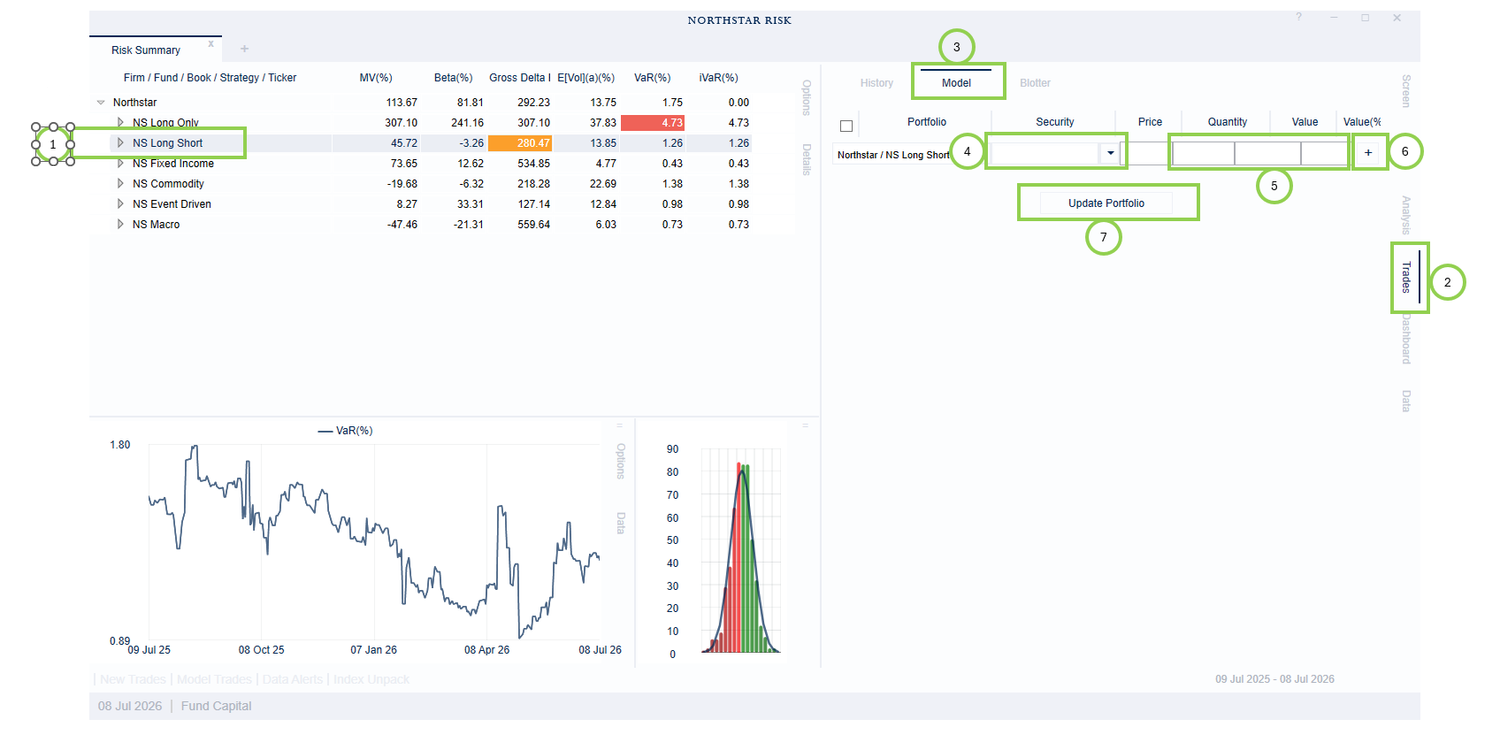
To create a model trade,
Select the portfolio or sub-portfolio in the main grid where you would like to add or modify a position with a model trade.
Open the Trades tab on the right side of the application.
If it is not already selected, select the Model sub-tab.
Select the security you would like to trade from the Security dropdown.
Enter the amount you want to trade by enter either the Quantity, Value, or Value(%). The other two values will be calculated.
Click the “+” at the end of the row. Repeat steps 1-6 to add additional trades.
Click “Update Portfolio”. All statistics and charts will be updated.
Model Trade Indicator
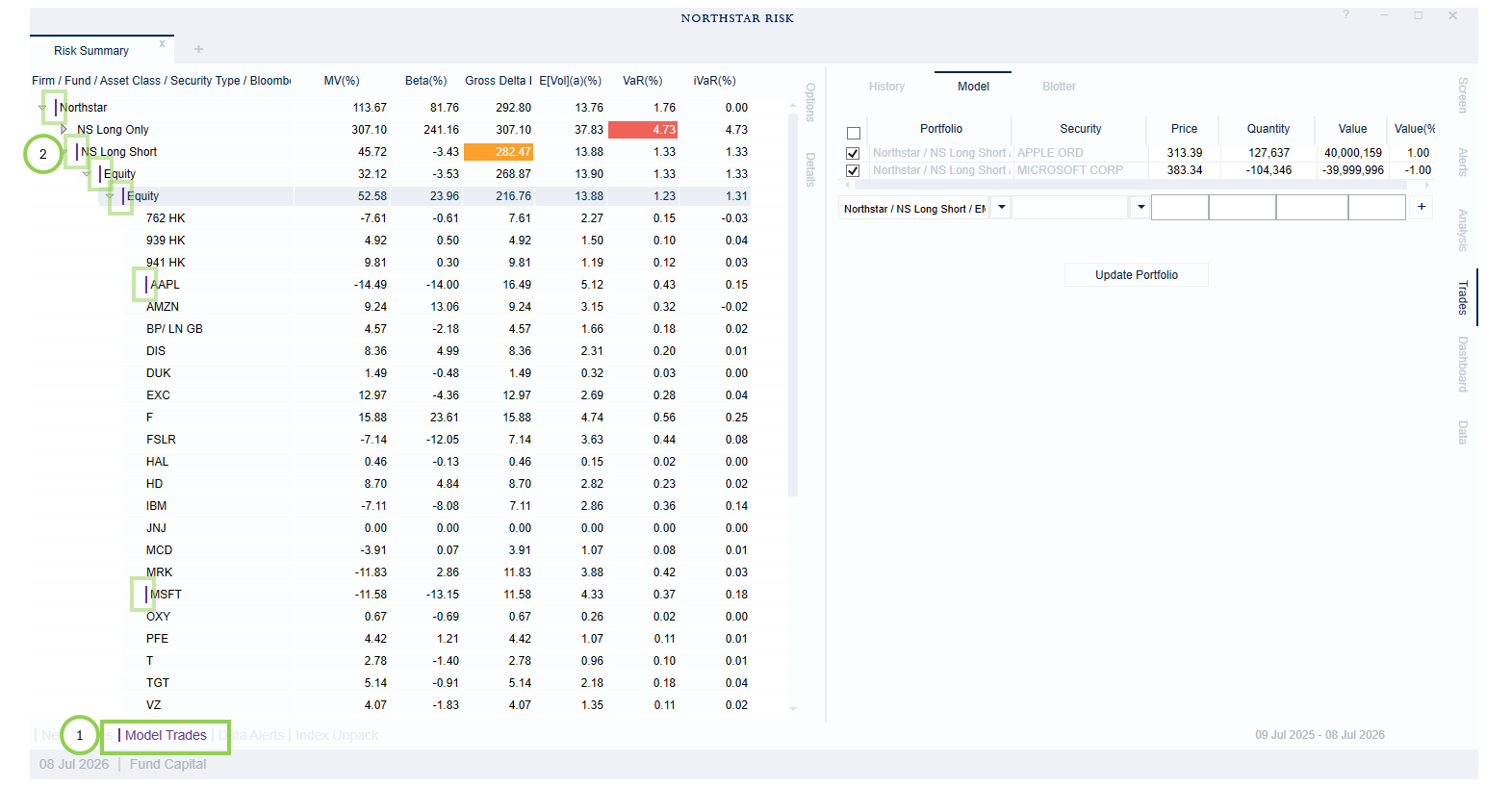
The presence of model trades is indicated by
The Model Trades indicator will turn on, changing from grayed-out to purple.
Any rows in the main grid that contain a model trade will have a vertical purple “breadcrumb”, which you can use to locate specific model trades.
Removing Model Trades
You can toggle all model trades on and off by clicking the Model Trades indicator.
You can remove individual model trades by going back to the Model Trades tab, and either
unchecking individual trades, or
deleting individual trades (right-click to delete).
Then click “Update Portfolio”.